
No products in the cart.
How to Download Travel Audio Guides Offline
Learn how to download travel audio guides before your trip, save data, use offline maps, and enjoy flexible sightseeing at your own pace, anywhere. easily.
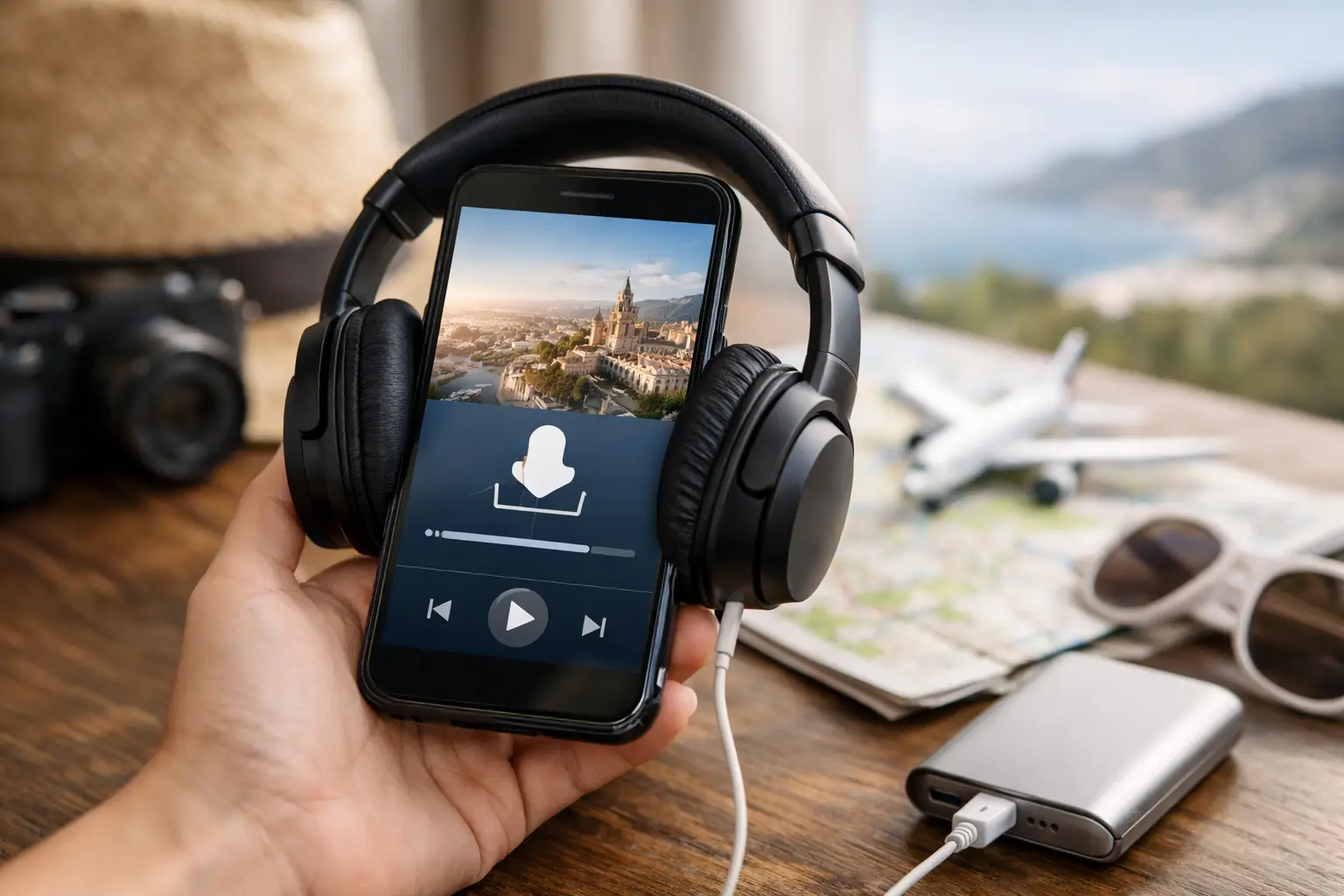
The best time to figure out how to download travel audio guides is not when you are standing on a busy street with 2% battery, weak signal, and a landmark somewhere in front of you. Downloading your tour before you leave your hotel, airport, or home gives you a personal guide in your pocket that is ready when you are.
For independent travelers, offline audio guides remove a common sightseeing hassle: relying on mobile data every time you need a map, story, or direction. With the right preparation, you can follow a route, hear expert narration, and take detours at your own pace without searching for public Wi-Fi.
Why download an audio guide before you go?
International data plans can be expensive, and even great coverage can disappear inside museums, underground stations, old city streets, or large historic buildings. An audio guide that is fully downloaded lets you keep exploring when your connection does not cooperate.
Offline access is also more comfortable. You can start your walk whenever you want, pause for coffee, spend longer at a favorite stop, or skip ahead to the part of the city that interests you most. There is no group to catch up with and no guide waiting for late arrivals.
A downloaded tour usually includes the narration and route information. Depending on the app, it may also include an offline map, photos, written descriptions, and automatic playback that starts as you approach a stop. Check what is included before you travel, especially if offline navigation is one of your priorities.
How to download travel audio guides in 5 steps
The exact buttons vary by app, but the process is usually simple. Give yourself a few minutes on reliable Wi-Fi before your sightseeing day begins.
1. Choose a guide that fits your plans
Start with the place and experience you actually want. A city-center walking tour is ideal for a first afternoon in a new destination, while a museum guide can add context to an indoor visit. Look at the route length, number of stops, estimated duration, language options, and whether the tour is designed for walking, driving, or public transportation.
Do not choose solely by the number of stops. A shorter route with engaging stories and clear directions can be more enjoyable than a packed itinerary that leaves no room for a pastry break or an unplanned viewpoint.
2. Install the audio tour app and sign in
Download the provider’s app from your phone’s app store. If you bought a guide through the provider’s website or another travel marketplace, use the same email address or account details you used at checkout. Your purchase should then appear in the app library or in a section such as My Tours.
If the guide does not appear immediately, check the purchase confirmation and make sure you are signed into the correct account. It is much easier to solve an account issue while you have dependable Wi-Fi than on the morning of a tour.
3. Find the download option for your tour
Open the guide and look for a button labeled Download, Make Available Offline, or similar wording. In many apps, this saves all audio tracks and map data in one action. Others may ask you to download the route first and individual audio files afterward.
Keep the app open until the download is complete. Large tours with many stops, high-quality audio, and photos may take longer than expected. If the app lets you choose audio quality, lower quality saves storage space, while higher quality can sound better through headphones. For spoken narration, standard quality is often perfectly adequate.
4. Check the offline map and playback
Do a quick test before leaving Wi-Fi. Open the map, tap a stop, and play a few seconds of narration. Confirm that the route appears and that the audio works through your phone speaker or headphones.
To test properly, temporarily switch on airplane mode. If the map and audio still work, your guide is ready for the day. Turn airplane mode off again if you want calls, messages, or live transit information, but remember that the tour itself should no longer need a connection.
5. Prepare your phone for a long day out
Audio, GPS, screen brightness, and camera use all draw power. Charge your phone fully, bring a compact power bank, and use wired or fully charged wireless headphones if you prefer private listening. A single earbud can be a practical choice on busy streets because it helps you stay aware of traffic and bicycles.
Before you start walking, allow the app to use your location if GPS navigation is part of the tour. Location permission helps the app show where you are and may trigger stories automatically as you arrive at stops. GPS itself can work without mobile data, though it may take a little longer to find your position after you have been indoors.
What “offline” really means
Offline does not always mean every feature works without the internet. The audio, route, and downloaded map may be available, while live traffic, real-time transit schedules, user reviews, or newly added content may require a connection.
That is not usually a problem for a self-guided walking tour. The key question is whether you can see the route and play each stop without using cellular data. Read the guide details and download instructions before purchase if you are traveling with no data plan or want to avoid roaming charges completely.
It also helps to download your guide over Wi-Fi rather than mobile data. This protects your data allowance and avoids an interrupted download if you lose signal. Hotel Wi-Fi is often enough, but download the evening before if possible rather than relying on the connection just before checkout.
Common problems and quick fixes
If an audio guide will not download, first check available storage. Phone storage fills quickly with photos and videos, especially on longer trips. Delete unused apps or move photos to cloud storage before downloading a large city guide.
If the download pauses, reconnect to strong Wi-Fi and reopen the app. Some apps resume automatically, while others need you to tap Download again. Avoid closing the app or enabling battery-saving settings until the files have finished saving.
If you can hear the guide but the map does not show your location, check that location services are on and that the app has permission to use them. When your location jumps or takes time to update, step outside with a clearer view of the sky and wait a moment. Dense streets, tunnels, and indoor galleries can make GPS less precise.
If narration is too quiet, try increasing media volume rather than call volume. With Bluetooth headphones, confirm they are connected before pressing play. And if automatic playback does not suit your style, many travelers simply tap each stop manually. You are still free to follow the route in your own way.
A few choices that make the experience better
Download guides for the first one or two days of your trip before departure. You will arrive with a plan but without over-scheduling every hour. Once you know the city better, you can decide whether you want another neighborhood walk, a museum guide, or a route beyond the usual landmarks.
Choose a guide in the language you are most comfortable listening to, not necessarily the language of the destination. Good storytelling is more enjoyable when you do not have to work to follow it. TouringBee audio tours, for example, combine expert-written stories, GPS-guided routes, and offline maps so travelers can explore without being tied to a group timetable.
Finally, leave room for the moments no route can plan. Pause the guide when a market catches your attention, take the side street that looks inviting, or sit down when you find the right café. A downloaded audio guide should make a city easier to understand, not make you rush through it.